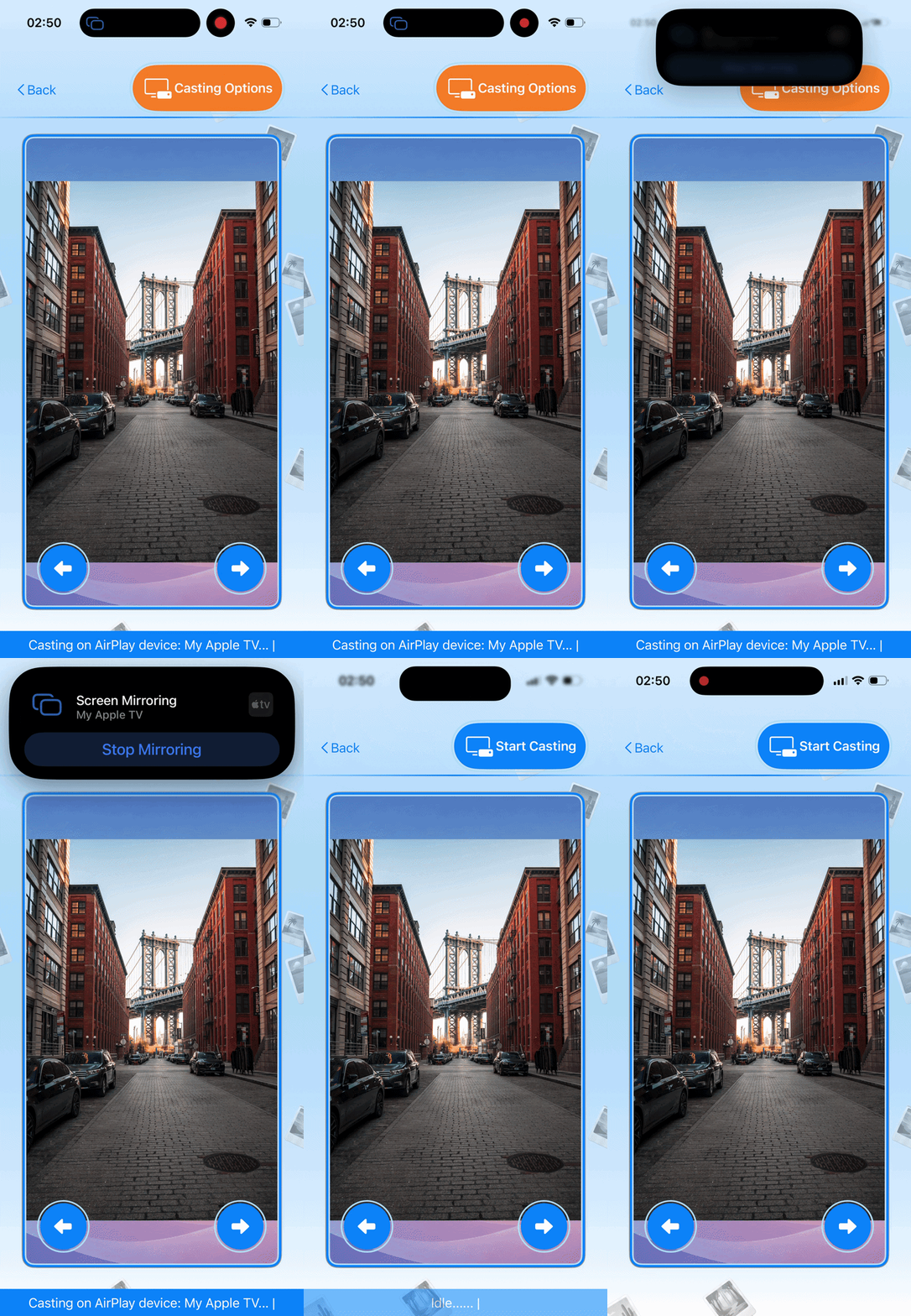
Use the native Apple AirPlay flow once, then Media TV Cast takes care of the display.
Automatic Detection
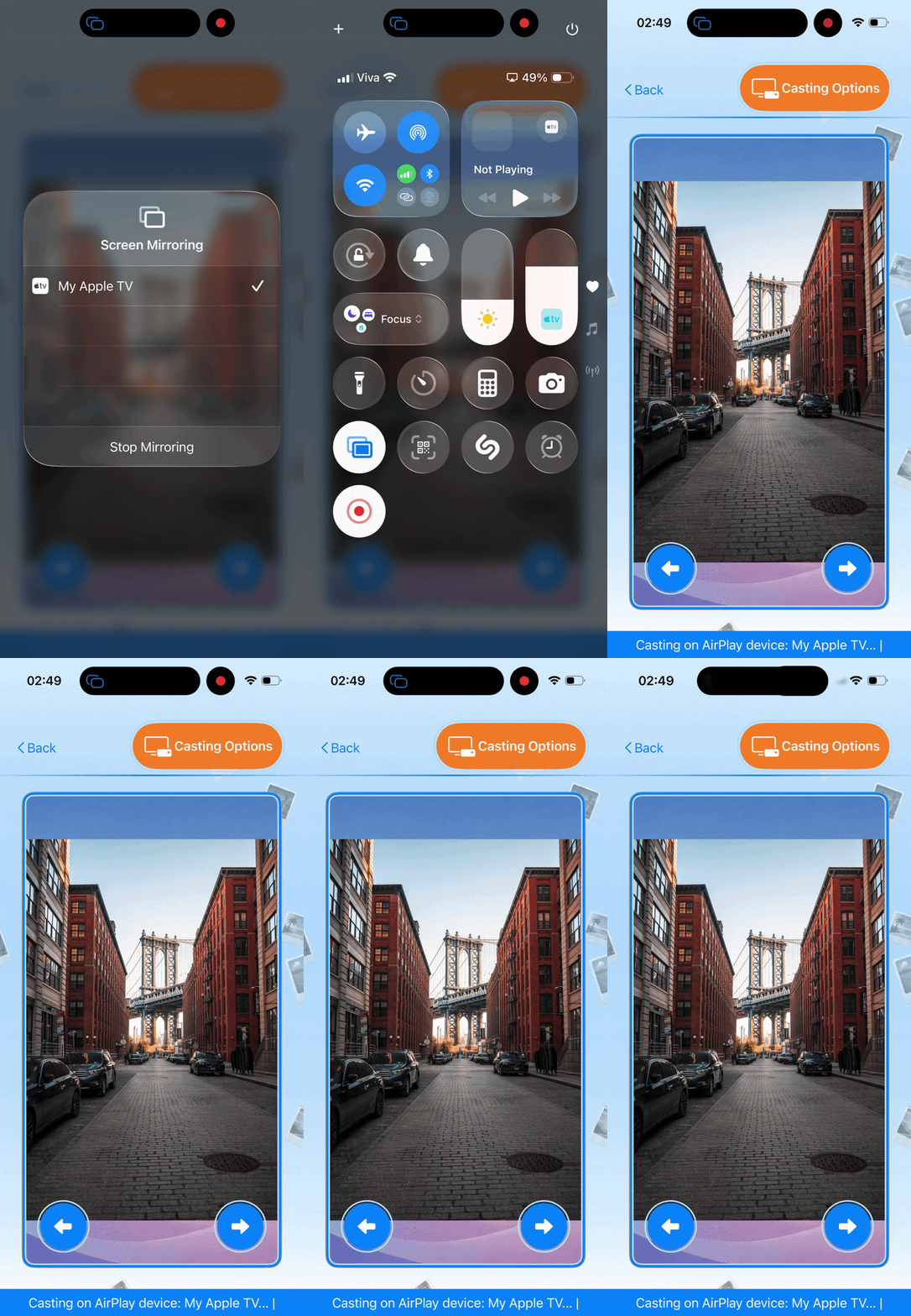
Casting to AirPlay devices (like Apple TV) with Media TV Cast is super easy and completely hands-free. Just start AirPlay Mirroring from your device’s Control Center as shown below, and the app will automatically start casting.
No need to tap the "Start Casting" button for AirPlay — it’s only there for other devices like Chromecast and UPnP/DLNA-enabled Smart TVs.
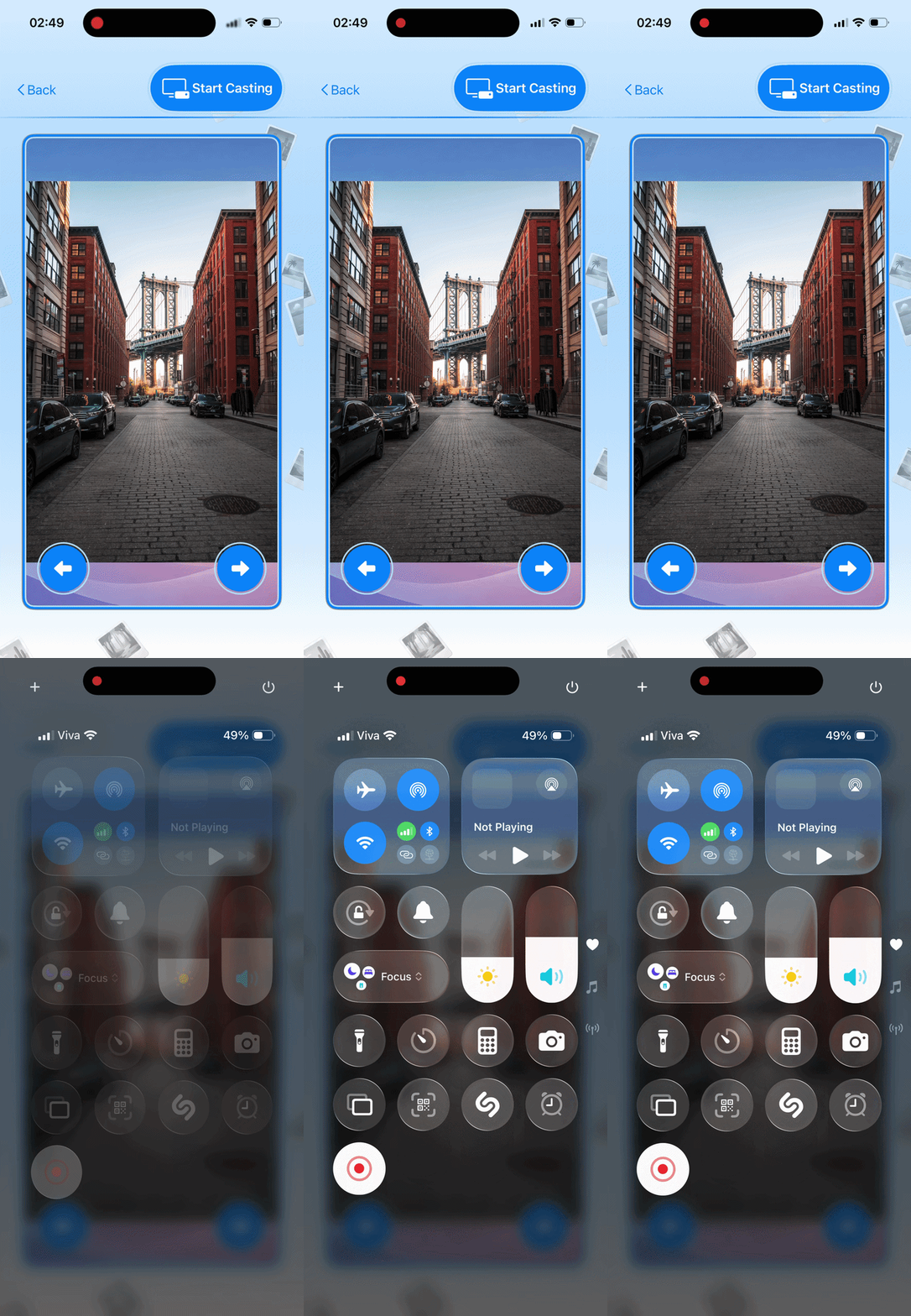
Open Control Center
Swipe down from the top-right corner of your iPhone/iPad screen (or swipe up from the bottom on older devices).
Enable Mirroring
Tap the Screen Mirroring icon and choose your Apple TV or AirPlay device. Per Apple policy, this must be initiated manually by you.
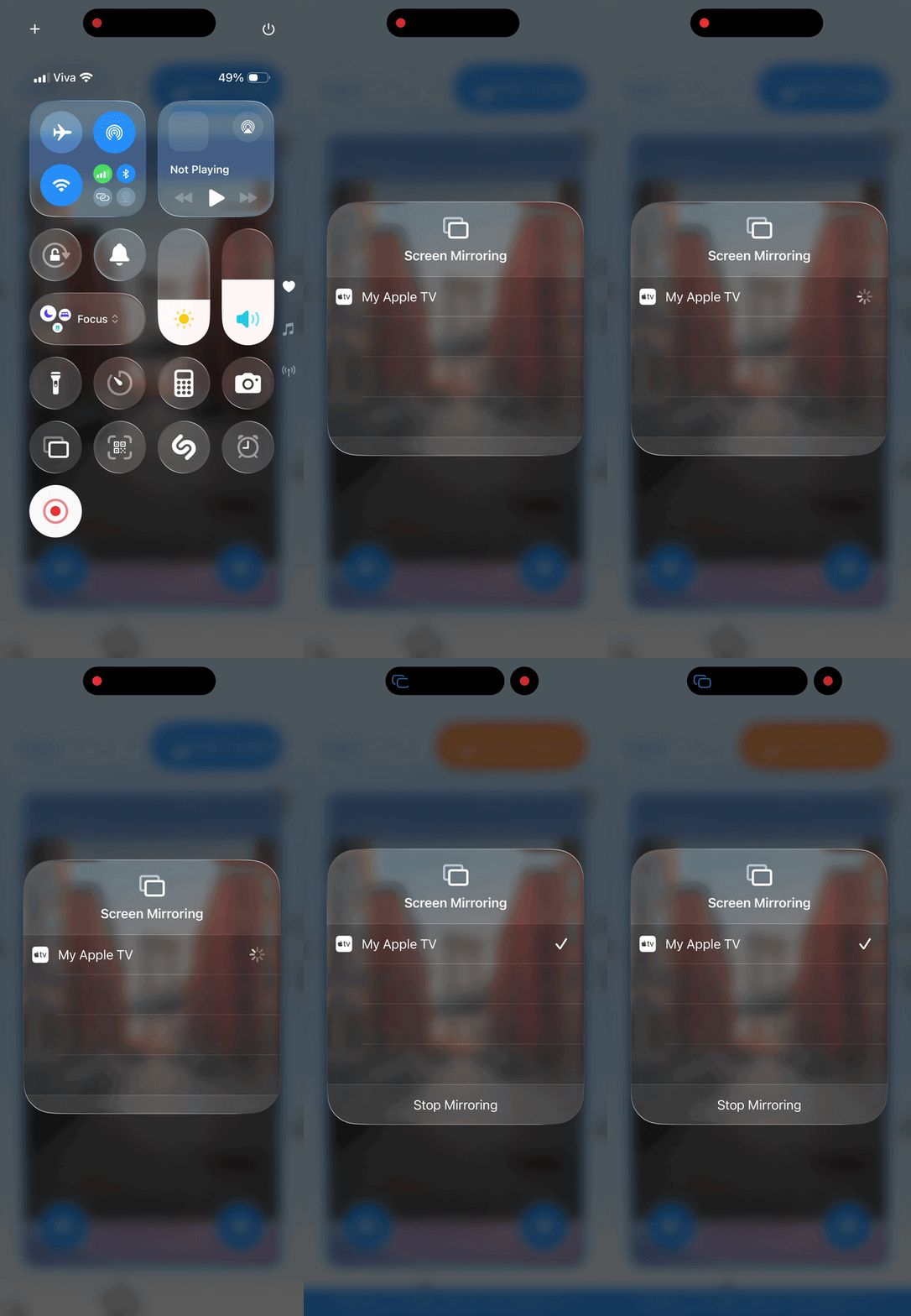
Close Control Center
Important: You must completely swipe away or close the Control Center. Once you return to the app, your photos and videos will appear on the TV instantly.
How to Stop
To end your session, you can:
- Tap the Blue Mirroring Icon (at the top of your iPhone screen) and select "Stop Mirroring."
- Use your TV remote to exit the AirPlay screen.